
Overview
Vungle Banner is currently in BETA phase. Please contact your account manager directly for access to ensure a successful launch.
Banner ads are rectangular ads occupying a location anywhere within the app's layout, typically displayed on the top or bottom of the screen, so that the user can continue to interact with the app while the ad is playing. The container size to render banner ads can be 320x50, 300x50, or 728x90 (for tablets).
| Banner Size | Dimensions |
|
|
320x50 |
|
|
300x50 |
|
|
728x90 (for tablets) |
Step 1. Complete Basic Integration
To integrate banner ads in your Android or Amazon app, begin by following the instructions in the basic integration article. This article contains supplementary information and assumes you have completed basic integration.
Step 2. Implement Event Listeners
You can use generic callbacks, by implementing LoadAdCallback for ad load events and PlayAdCallback for ad play events, or use inline callbacks when you invoke loadAd and playAd.
Implement LoadAdCallback
private final LoadAdCallback vungleLoadAdCallback = new LoadAdCallback() {
  @Override
  public void onAdLoad(String id) {
    // Ad has been successfully loaded for the placement
  }

  @Override
  public void onError(String id, VungleException exception) {
    // Ad has failed to load for the placement
  }
};
// 6.4.x & below
private final LoadAdCallback vungleLoadAdCallback = new LoadAdCallback() {
@Override
public void onAdLoad(String id) {
// Ad has been successfully loaded for the placement
}
@Override
public void onError(String id, Throwable throwable) {
// Ad has failed to load for the placement
}
};| Overridable Methods | Description |
|---|---|
onAdLoad(String id) |
Invoked when the ad has been successfully loaded and be played for the placement |
onError(String id) |
Invoked when an error occurs while attempting to play an ad. You will be able to check error message from getLocalizedMessage of VungleException and use getExceptionCode for debugging. |
PlayAdCallback
private final PlayAdCallback vunglePlayAdCallback = new PlayAdCallback() {
  @Override
  public void onAdStart(String id) {
    // Ad experience started
  }

  @Override
  public void onAdViewed(String id) {
    // Ad has rendered
  }

  @Override
  public void onAdEnd(String id) {
    // Ad experience ended
  }

  @Override
  public void onAdClick(String id) {
    // User clicked on ad
  }

  @Override
  public void onAdLeftApplication(String id) {
    // User has left app during an ad experience
  }

  @Override
  public void creativeId(String creativeId) {
   // Vungle creative ID to be displayed
  }

  @Override
  public void onError(String id, VungleException exception) {
    // Ad failed to play
  }
};
// 6.8.x & 6.9.x
private final PlayAdCallback vunglePlayAdCallback = new PlayAdCallback() {
@Override
public void onAdStart(String id) {
// Ad experience started
}
@Override
public void onAdViewed(String id) {
// Ad has rendered
}
@Override
public void onAdEnd(String id) {
// Ad experience ended
}
@Override
public void onAdClick(String id) {
// User clicked on ad
}
@Override
public void onAdLeftApplication(String id) {
// User has left app during an ad experience
}
@Override
public void onError(String id, VungleException exception) {
// Ad failed to play
}
};// 6.6.x & 6.7.x
private final PlayAdCallback vunglePlayAdCallback = new PlayAdCallback() {
@Override
public void onAdStart(String id) {
// Ad experience started
}
@Override
public void onAdEnd(String id) {
// Ad experience ended
}
@Override
public void onAdClick(String id) {
// User clicked on ad
}
@Override
public void onAdLeftApplication(String id) {
// User has left app during an ad experience
}
@Override
public void onError(String id, VungleException exception) {
// Ad failed to play
}
};// 6.5.x & below
private final PlayAdCallback vunglePlayAdCallback = new PlayAdCallback() {
@Override
public void onAdStart(String placementReferenceId) {
// Ad experience started
}
// Deprecated
@Override
public void onAdEnd(String placementReferenceId, boolean completed, boolean isCTAClicked) {
// Invoked when the ad experience is completed
// isCTAClicked flag indicates whether CTA download button has been triggered
// completed flag indicates at least 80% of video was watched for rewarded placement
}
@Override
public void onError(String placementReferenceId, VungleException exception) {
// Ad failed to play
}
};| Overridable Methods | Description |
|---|---|
onAdStart(String id) |
Invoked when the Vungle SDK has successfully launched the advertisement and an advertisement will begin playing momentarily. |
onAdViewed(String id) |
Invoked when the ad is first rendered on device. Please use this callback to track impressions. |
onAdEnd(String id) |
Invoked when the entire ad experience has been completed, just before the control has been returned back to the hosting app. |
onAdClick(String id) |
Invoked when the user has clicked on a video ad or download button. |
onAdLeftApplication(String id) |
Invoked when the user leaves the app before ad experience is completed, such as opening the Store page for the ad. |
creativeId(String creativeId) |
Invoked immediately after playAd has been issued and prior to onAdStart callback. Vungle creative ID to be shown will be passed to be used for tracking or reporting purpose. |
onAdError(String id, VungleException exception) |
Invoked when an error occurs while attempting to play an ad. You will be able to check error message from getLocalizedMessage of VungleException and use getExceptionCode for debugging. |
Step 3. Load, Display, and Close a Banner Ad
Note on v6.10.1 API Change: Banners.loadBanner and Banners.getBanner will now take a BannerAdConfig object for the size of banner ad to be requested and displayed, compared to AdConfig.AdSize object that was used for v6.9.1 and below. Banners.canPlayAd continues to take AdConfig.AdSize to check ad availability for a banner placement for a specific banner ad size.
Load a Banner Ad
Loading a banner ad works differently than it does for other ad formats. There is a specific Banners API that you use to load, play, and check for ad availability. You must specify the size of the banner that you want to load, and the SDK will automatically refresh it with the time interval that you configured on the dashboard. You must also configure the placement to support a banner feed, so please contact your Vungle account manager to enable banner ads for a placement.
- Load a banner ad by calling the
loadBannermethod:final BannerAdConfig bannerAdConfig = new BannerAdConfig(); bannerAdConfig.setAdSize(AdConfig.AdSize.BANNER); Banners.loadBanner("BANNER_ID", bannerAdConfig, vungleLoadAdCallback);// 6.9.1 & below Banners.loadBanner("BANNER_ID", bannerAdConfig.getAdSize(), vungleLoadAdCallback); - Check for banner ad availability by calling the
canPlayAdmethod:final BannerAdConfig bannerAdConfig = new BannerAdConfig(); bannerAdConfig.setAdSize(AdConfig.AdSize.BANNER); Banners.canPlayAd("BANNER_ID", bannerAdConfig.getAdSize());// 6.9.1 & below Banners.canPlayAd("BANNER_ID", AdConfig.AdSize.BANNER);
Display a Banner Ad
Because the view size is fixed, you must specify the container used to display banner ads to be one of the supported sizes: 320x50, 300x50, or 728x90 (for tablets). You can place the view anywhere on the screen. This container is a LayOut. Its size must be equal to or greater than the banner size you are using. You can place this LayOut anywhere on the screen. Then you must pass the size of the banner you are using via the Banners API.
Pass this object when calling Banners.loadBanner to specify the size you are displaying, and use Banners.getBanner to get the Banners ad object. Finally, call the addView method to associate the container with the banner ad.
private FrameLayout bannerContainer = findViewById(...);

// Check for banner ad availability and display
final BannerAdConfig bannerAdConfig = new BannerAdConfig();
bannerAdConfig.setAdSize(AdConfig.AdSize.BANNER);

if (Banners.canPlayAd("BANNER_ID", bannerAdConfig.getAdSize())) {
  VungleBanner vungleBanner = Banners.getBanner("BANNER_ID", bannerAdConfig, vunglePlayAdCallback);
  bannerContainer.addView(vungleBanner);
}
// 6.9.1 & below
private RelativeLayout bannerContainer = findViewById(...);
// Check for banner ad availability and display
if (Banners.canPlayAd("BANNER_ID", AdConfig.AdSize.BANNER)) {
VungleBanner vungleBanner = Banners.getBanner("BANNER_ID", AdConfig.AdSize.BANNER, vunglePlayAdCallback);
bannerContainer.addView(vungleBanner);
}Close a Banner Ad
Because the banner ad view has been added to your container view, it must also be removed, in case the ad view disappears from the screen, the activity or fragment is destroyed, or the parent view container is recycled or destroyed. If you try to play another banner ad without closing the previous ad, you may experience unexpected behavior in your app.
vungleBanner.destroyAd();Step 4. Use Our VungleBanner API for Advanced Control (Optional)
In most cases, the integration described above is sufficient, and VungleBanner is managed. However, if the VungleBanner view is inside a list or a RecyclerView, the managed VungleBanner will not work correctly. The moment the user scrolls the ad offscreen and scrolls back, the ad will be finished and no longer there. For such cases, we provide an advanced API for closer control of the VungleBanner.
VungleBanner Class API
These APIs give developers fine control over how to treat the VungleBanner across various lifecycle events in the developer application. In most use cases, developers do not need to invoke these methods. Simply adding a VungleBanner into a parent view suffices.
In rare cases, however, either a view will be recycled (such as a RecyclerView, ListView, etc.), or we will need to handle visibility manually (in some older Android devices, WebView is not automatically paused when it goes offscreen).
| Name | Function | Notes |
disableLifeCycleManagement(boolean disabled) |
Invoke to disable automatic management of banner | Must be set to true for renderAd and setAdVisibility to work |
renderAd* |
Renders the ad if it is not visible | It can also load new ad |
setAdVisibility* |
Notifies the view container when banner is visible screen | Pause and resume banner |
destroyAd |
Call to destroy when no longer needed, the view container is no longer usable | Frees banner resources |
finishAd* |
Stops current ad, send report and allow another ad to be loaded after (only applicable for certain integration into RecyclerView or ListView) | Frees banner resources |
*You must invoke vungleBannerAd.disableLifeCycleManagement(true) before using this API.
Managed and Un-Managed VungleBanner Views
When you get a VungleBanner, by default it is a managed VungleBanner view. This means that the moment you add this view into a parent container, Vungle controls when to show an ad, when to destroy an ad, and when to send the report. Visibility events are also taken care of, and developers do not have to notify the SDK when a banner view object is on screen or not. In cases where a developer does not have a VungleBanner view inside a recyclable view or ViewHolder pattern, this is the preferred way to use VungleBanner.
In cases where a VungleBanner view is inside a ListView or RecyclerView, the managed VungleBanner will not work correctly. The moment the user scrolls the ad offscreen and scrolls back, the ad will be finished and no longer be there.
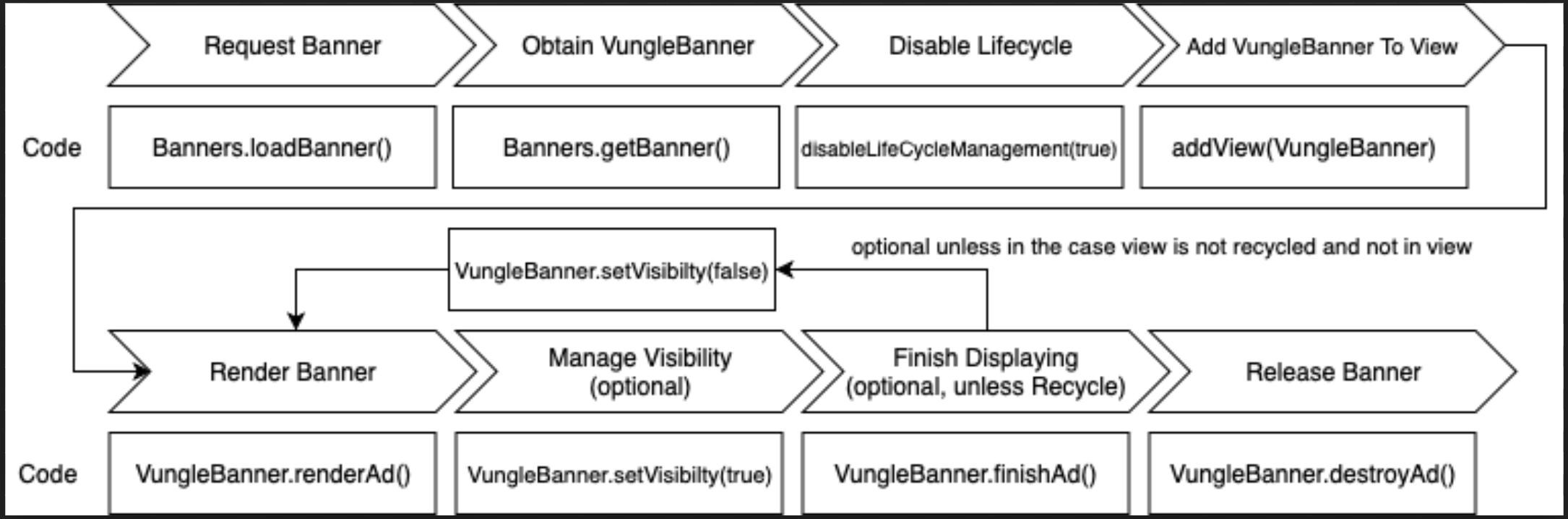
For these cases, we added disableLifeCycleManagement(boolean disable) API to allow developers to handle the lifecycle of the VungleBanner manually.
Before you add the VungleBanner to a view or bind the view, when you set:
vungleBannerAd.disableLifeCycleManagement(boolean disabled)You must call:
VungleBanner.renderAd()when the view is boundVungleBanner.setAdVisibility(true|false)when the ad is recycled or no longer visibleVungleBanner.destroyAd()when theVungleBannerobject is no longer needed
Step 5. Customize Banner Ads (Optional)
You have the option to customize individual ads you play by providing a new adConfig object to playAd. When the AdConfig object is null, the ad plays with the default configuration settings; when it is non-null, its settings override those in the AdConfig setter. The following is an example of how to use AdConfig:
Vungle.playAd(placementReferenceID, adConfig, vunglePlayAdCallback);The above example uses the adConfig object, which contains customized configuration options. Set the AdConfig object as shown:
AdConfig adConfig = new AdConfig();
adConfig.setAdOrientation(AdConfig.AUTO_ROTATE);
adConfig.setMuted(true);
Vungle.playAd(placementReferenceID, adConfig, vunglePlayAdCallback);
The following table lists the available AdConfig options for banner ads:
| Option | Description |
|
|
'false' if the video should start with its audio settings matching those of your enclosing application; 'true' if it should start muted regardless |
|
|
takes an Integer value of ordinal count to track the number of ads that have been played in same session |
Note: You may use the same AdConfig object for multiple ads.
Best Practices
- Before attempting to show a banner ad, always try to check if the parent activity is finished before binding the
VungleBannerto a view.if (activity != null && activity.isFinishing()) { return; } - Do not change the
LayoutParamsofVungleBanner. This could negatively impact how the banner is displayed, and possibly result in your ad not being visible. - Do not put the ad in a container size smaller than the requested ad. If you’re requesting a regular banner (320x50), ensure that your parent container is at least 320dp x 50dp.